

Embedding is available to all Lightdash Cloud users, get in touch to have this feature enabled in your account.
What can you embed?
Lightdash supports embedding two types of content, each designed for different use cases:Dashboards
Embed complete dashboards with multiple visualizations, filters, and tabs. Perfect for providing comprehensive analytics views in your application. Use cases:- Executive dashboards in admin panels
- Customer-facing analytics portals
- Embedded reporting for SaaS applications
Charts
Embed individual saved charts for focused, single-metric displays. Charts provide a minimal UI for clean integration. Use cases:- Single KPI widgets in applications
- Embedded metrics in marketing pages
- Focused analytics in workflows
Chart embedding requires the React SDK. iframe embedding is only available for dashboards.
How can you embed content?
Lightdash offers two embedding methods. The choice mainly comes down to what you’re embedding and how much customization you need. iframe embedding is simple to set up. You only need to generate a JWT, construct a URL, and add this to an<iframe> tag. There are no additional setup requirements and this works anywhere (React, Vue, plain HTML). Note that iframe embedding currently only supports dashboards (chart embedding via iframe is not supported).
React SDK (@lightdash/sdk) is the more powerful option. It supports both dashboards and charts, lets you pass filters programmatically, hook into user interaction callbacks (like when someone navigates to Explore), and apply custom styling to match your app. It requires a React/Next.js app and CORS configuration on the Lightdash instance (Cloud customers need to contact Lightdash to set that up).
Both methods use the same JWT-based authentication and security model.
Quick comparison
| Feature | iframe | React SDK |
|---|---|---|
| Dashboards | ✓ | ✓ |
| Individual charts | ✗ | ✓ |
| Setup complexity | Low | Medium |
| CORS needed | No | Yes |
| Programmatic filters | Via JWT config | Via SDK filters prop |
| Custom styling | Limited | Full control |
| Framework requirement | None | React / Next.js |
Passing filters to embedded dashboards
Both methods support filters, just differently:- JWT config — Set filters in the token payload at embed time. Works for both methods.
- React SDK
filtersprop — Pass them dynamically at runtime. Better if filters need to change based on the logged-in user.
Quick start: Embed a dashboard
This quick start will walk you through embedding your first dashboard using an iframe.Step 1: Create an embed secret
First, you need to generate a secret per project. This secret is like a password that will help you encrypt the URLs so we know the access is valid.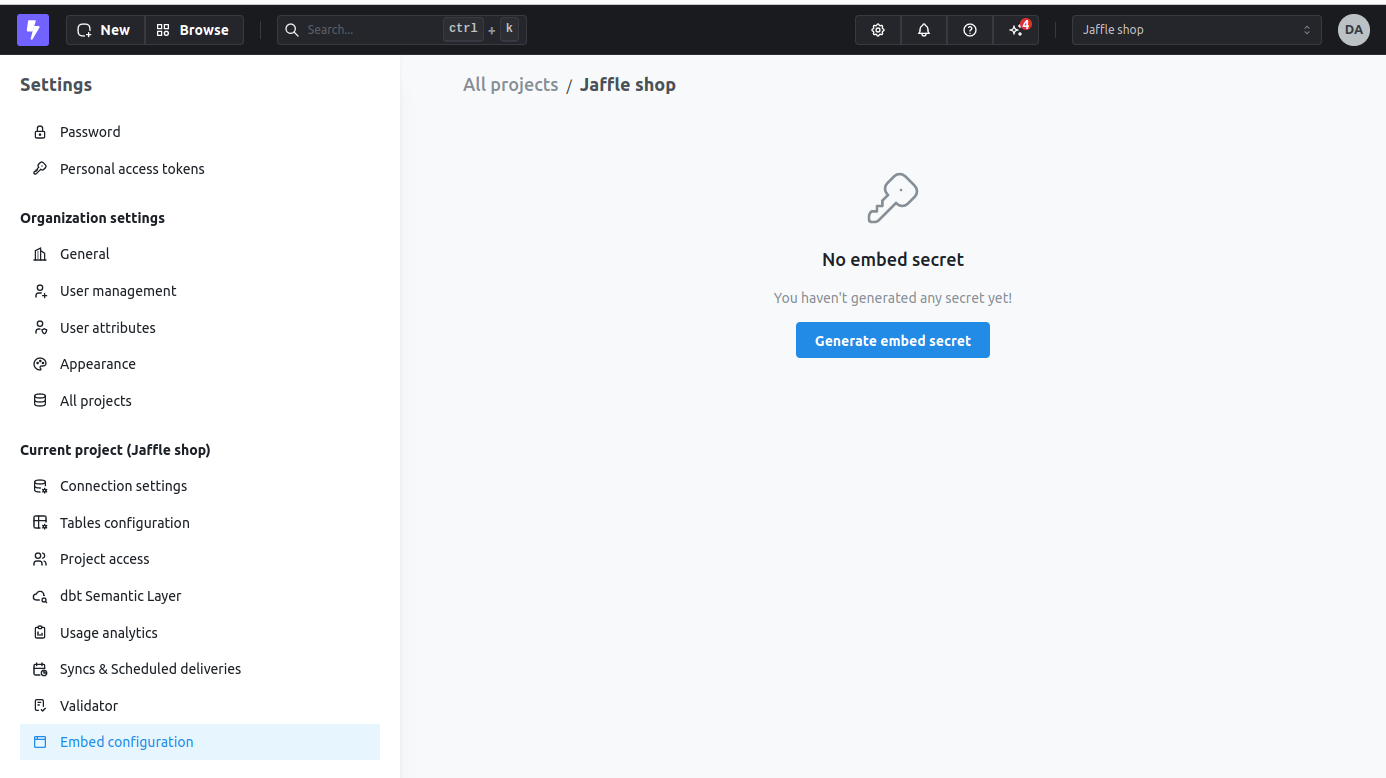
Generate new secret button. If you do this, people with an old URL will automatically lose access to any previously shared embed URL.
Step 2: Add allowed dashboards
Only selected dashboards can be accessed via embed URLs. Add the dashboard you want to embed to the allowed list.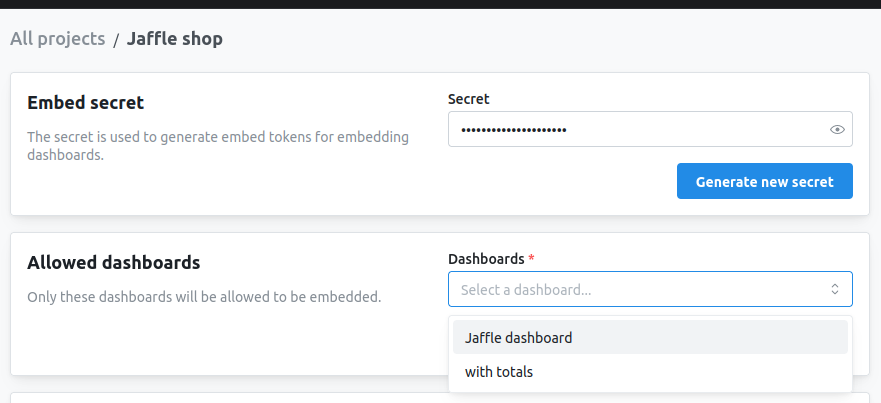
Step 3: Configure and preview
Under the “Configure” section, you can:- Select which dashboard to embed
- Set token expiration time
- Configure interactivity (filters, exports, etc.)
- Add user attributes for row-level security
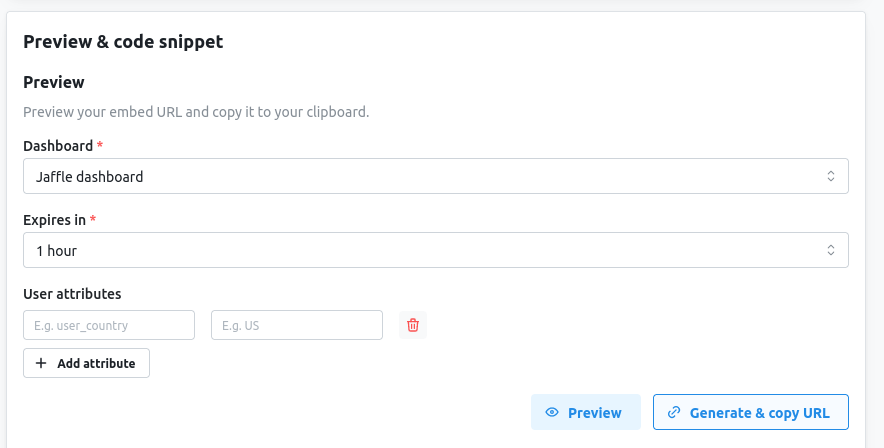
Preview to see how the embedded content will look, and click on Generate & copy URL to get a one-off embed URL for testing.
Step 4: Generate tokens programmatically
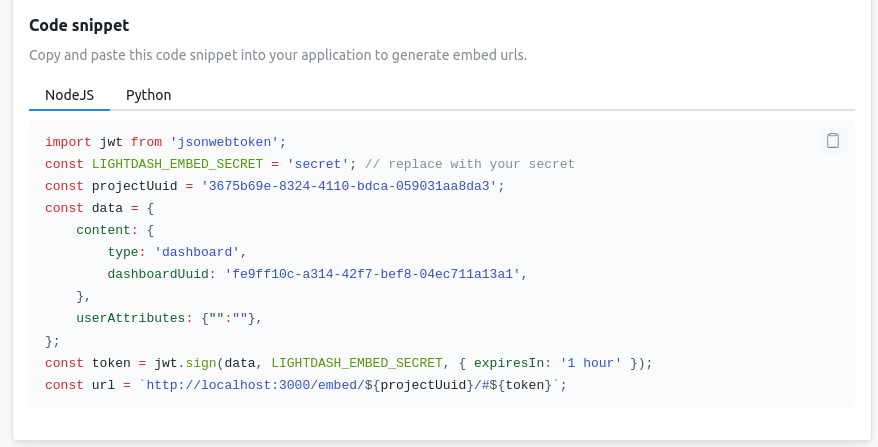
Although you can generate URLs directly from Lightdash with a long expiration, it is recommended to generate your own JWTs in your backend with a short expiration using yoursecret to make sure people can’t be using embed URLs outside your app.
Lightdash provides code snippets you can copy and use in your app to generate valid embed URLs:
Next steps
Embedding dashboards
Complete guide to dashboard embedding with all configuration options
Embedding charts
Learn how to embed individual charts for focused displays
User attributes & row-level security
Show different data to different users with user attributes
iframe embedding reference
URL patterns and HTML embedding details
React SDK reference
Seamless React integration with advanced features
Embedding API reference
Complete JWT structure and configuration options
Common questions
Do I need a Lightdash account to view embedded content?
No, embedded Lightdash content is available to view by anyone (not just folks with a Lightdash login). So, for example, you could embed a dashboard in your product, and anyone who has access to your product would have access to that dashboard. No need to login to Lightdash. We make sure that the links are secure and have a set expiry time that you pick.How does security work?
Embedded content is secured using JWT (JSON Web Tokens) that you sign with your embed secret. The token includes:- What content to display (dashboard or chart)
- Expiration time
- User attributes for row-level filtering
- Permissions for interactivity (filters, exports, etc.)